

CatalogWin.Script
The CatalogWin script allows capture of images of what the barcode scanner is reading at each catalog location. This helps service engineers troubleshoot cataloging errors by inspecting the images of the reagent barcodes and verifying that the barcodes are aligned properly within pre-defined areas.
Procedure
- Log in as FSVC user
- Navigate to the Field Service screen under Maintenance tab.
- Click on the Script-O-Matic button to launch Script-O-Matic.
- Once in Script-O-Matic, go under Huey and click on the Run Script button.
- Navigate to Bank #3, select CatalogWin.script from the drop down menu, and press OK to launch the script. The script will move the Z-Gantry to each cataloging location and pause.
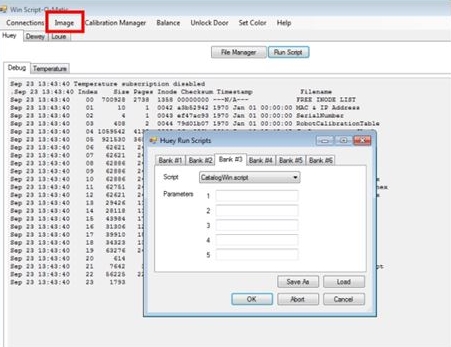
- Click the Image button located at the top of the window Script-O-Matic application window to take an image of the reagent barcode.
Image process may take up to 30 seconds after clicking the image button without acknowledgement to complete.
- A beep indicates that image was taken by the barcode reader and then the image displays.
- Inspect the image to verify that the barcodes are aligned properly within the white box or is completely visible in the field of view (FOV) of the image taken. If the barcodes are out of the FOV, loosen the two screws holding the barcode reader and title the barcode reader towards the bottom of the gantry. Retighten the screws and retake the image.
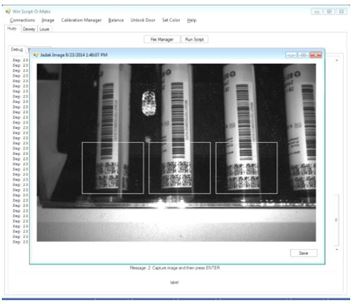
- Once the review of the image is complete, close the image, and press Enter to move the robot to the next cataloging location.
If the barcode is not inside the white box (faint rectangular outline at top center of picture), the drawer-out flag sensor may need adjustment.
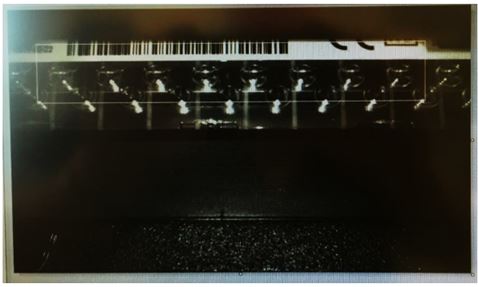
- Once the barcode images has been verified, go to Run Script and hit the Abort button.
Reboot both the instrument and the All-In-One after exiting from Script-O-Matic.